
Working from home sounds a great job type choice, it offers freedom and flexibility at the comfort of your home. But you might find it blurs the lines between your work and your personal life and sometimes can’t strike a balance between either. You’ll either be distracted from your work or busy answering phones from your clients while having quality time with your kids, it’s a huge frustration. As a “family-holic” person, I personally would definitely choose to spend more time with my family if I can, so it makes sense to be more organized and productive at work.
In this post, I’m excited to share 12 AI-powered productivity tools (I personally use them a lot) that can help you work smarter, not harder. These tools are specifically designed to streamline your workflow, and boost your daily work efficiency.
My earlier post on 20 Underrated Practical Online Tools for Office Productivity dives into some great in-office productivity tools if you are NOT a remote worker, should you have any interest, be sure to check them out. Pairing them with tools in this post gives you a comprehensive toolkit for tackling your work regardless of your work location.
Without further ado, Let’s jump in and discover these awesome tools together!
1. Todoist - A Robust Task Management Tool

If you’re anything like me, juggling tasks while working from home can feel overwhelming at times. That’s where Todoist comes into play. It has become my go-to app for keeping everything organized and under control.
Have you ever lost track of what to do next with ongoing distractions at home, forgotten key tasks, or even slipped important deadlines? I have! But don’t worry, Todoist addresses all by allowing you to create projects, set due dates, and add priority levels all in one clean interface. I love how it breaks down my day into manageable chunks, making it super easy to see what I need to focus on.
Another prominent feature is the AI-driven smart scheduling. It suggests the best times to complete tasks based on your productivity patterns, which has been a game-changer for me. Plus, it integrates seamlessly with tools like Google Calendar, so everything stays synced.
Of course, it’s not without its drawbacks — some users might find the premium features a bit lacking if you’re looking for advanced analytics or complex project management tools.
Pros and Cons:
| Pros | Cons |
|---|---|
| User-friendly interface | Some advanced features may require premium upgrade |
| Smart scheduling option | Limited project management tools |
| Integrates with other apps | Learning curve for new users |
Pricing Plans:
- Free: Basic task management features with 5 personal projects.
- Premium: $5/user/month (or $48/year), with 300 personal projects, includes reminders, labels, and comments.
- Business: $8/user/month (or $72/year), with up to 500 team projects, ideal for teams with enhanced collaboration tools.
2. Notion - An all-in-one AI workspace
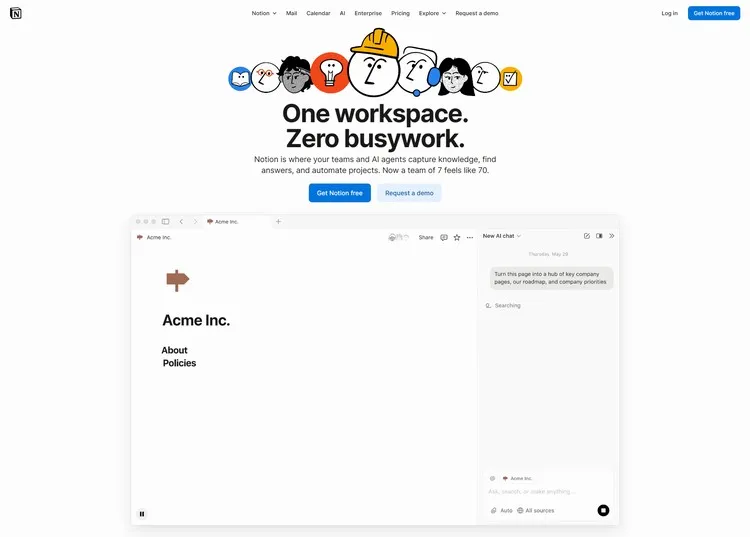
Often times, one simple remote task might require multiple tools or platforms, it’s a huge headache when tools are scattered across different apps. Notion kicks in as I can have all my notes, projects, and ideas in one place like magic. I like the customizability it offers. You can create pages for anything, from daily tasks to long-term projects, and even build a personal wiki.
The drag-and-drop interface makes it easy to set up and organize everything just the way I like it. Whether you’re planning a project or brainstorming ideas, there’s a template to help you get started without the fuss.
While Notion is a great all-round workplace for remote workers, it does come with a bit of a learning curve for new users, but once you get the hang of it, you’ll never regret the endeavor.
Pros and Cons:
| Pros | Cons |
|---|---|
| All-in-one workspace | Steeper learning curve for new users |
| Highly customizable | Some features may feel overwhelming |
| Great templates available | Can be slow with large databases |
Pricing Plans:
- Free: For individuals to organize personal projects and life.
- Plus: $10/member/month (billed annually), perfect for collaboration with small teams and professionals.
- Business: $20/member/month (billed annually), ideal for growing businesses streamlining their teamwork.
- Enterprise: Custom pricing, tailored for larger organizations with advanced security and admin controls.
3. Slack - An AI Work Management Productivity Tool
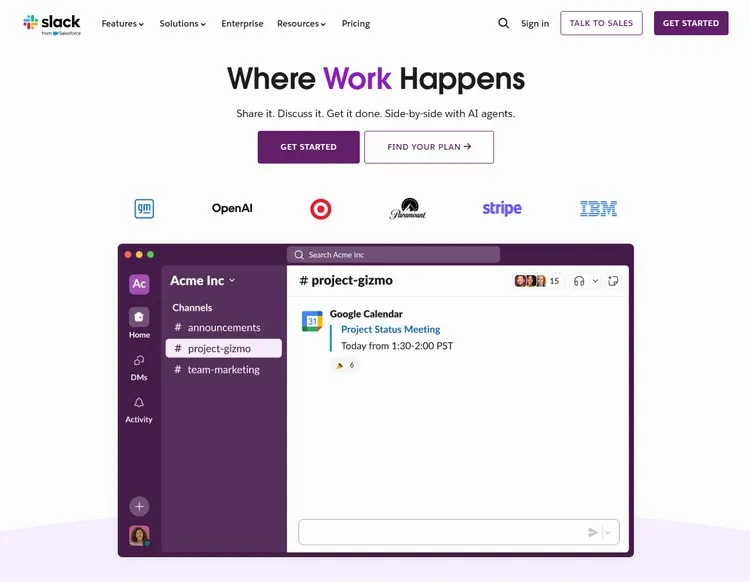
One important aspect of working from home that we should seriously consider is the timeliness of communication between team members.
One of the main frustrations I had with working remotely was the overwhelming number of emails clogging up my inbox. Emails are great, but they lack the timeliness required. With Slack, everything is streamlined into channels, making conversations much more organized. You can create specific channels for projects, topics, or even casual chit-chat, which helps keep work discussions focused and relevant.
Another awesome feature is the ease of integration with other tools we commonly use. Whether it’s Google Drive or Trello, having everything connected in one place significantly boosts our productivity. Plus, the threaded conversations keep things tidy, so you don’t have to scroll through endless messages to find what you need.
Paid plan alert, the free plan limits your message history to just 90 days, which means if your remote work relies on old conversations, you’ll have to upgrade to a paid plan.
Pros and Cons:
| Pros | Cons |
|---|---|
| Organized channels for discussions | Limited message history on free plan |
| Easy integration with other tools | Can become overwhelming with many channels |
| User-friendly interface | Some features locked behind paid plans |
Pricing Plans:
- Free: $0, limited to 90 days of message history and basic features.
- Pro Plan: $7.25/month (billed annually) or $8.75/month, includes unlimited message history and integrations.
- Business+ Plan: $15/month (billed annually) or $18/month, comes with additional features like shared channels and advanced security.
- Enterprise+ Plan: Custom pricing, ideal for larger organizations needing advanced capabilities.
4. Trello - Capture, Organize, and Tackle Your To-Dos from Anywhere
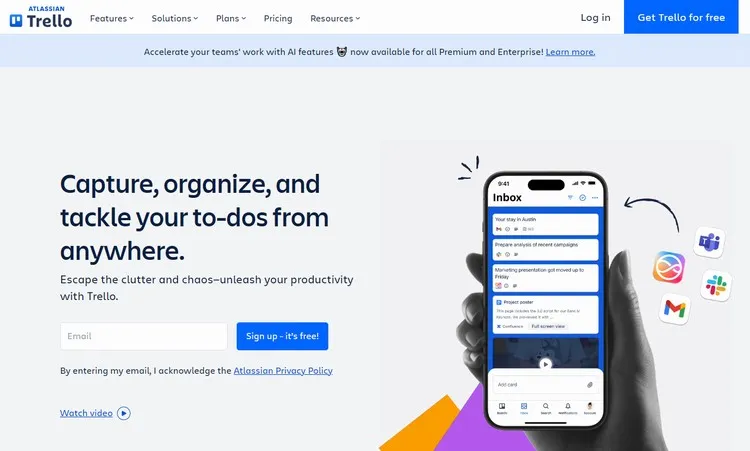
Trello distinguishes itself from other To-Do apps as a Kanban style management tool. By utilizing its visual board and card system for different projects, tasks or workflows, you can easily keep everything right in front of you, making it easy to see how tasks are going at a glance. I love the drag-and-drop feature, which allows me to prioritize my workload without any hassle.
Trello also integrates seemlessly with tools I already use, like Google Drive and Slack. However, it does have its limitations. The free version restricts you to 10 boards, and advanced features are only available in paid plans.
Pros and Cons:
| Pros | Cons |
|---|---|
| User-friendly interface | Limited free features |
| Visual layout for task management | Basic for larger teams |
| Good integration options | Advanced features require payment |
Pricing Plans:
- Free: $0/month, includes unlimited cards, 10 boards per workspace, and 250 workspace command runs.
- Standard: $5/user/month (billed annually), includes unlimited boards and advanced checklists.
- Premium: $10/user/month (billed annually), adds advanced views (calendar, timeline), and priority support.
- Enterprise: $17.50/user/month (billed annually), includes organization-wide permissions and enhanced security features.
5. Asana - All Your Work All in One place
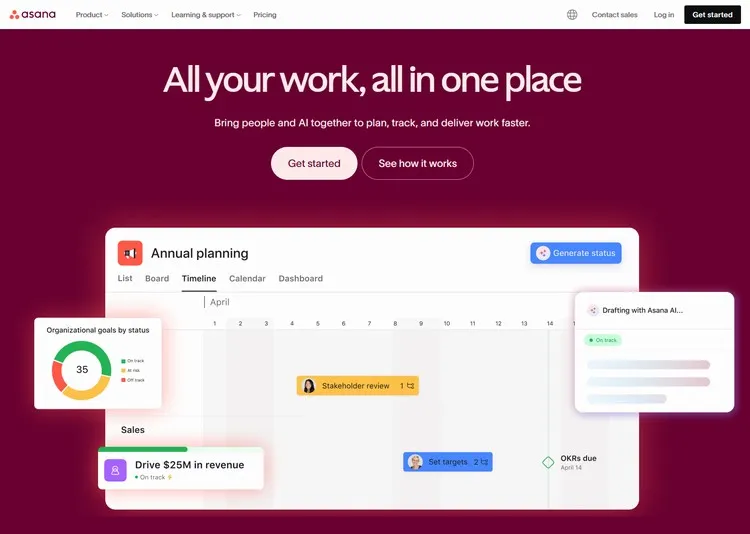
I personally can’t recommend Asana enough if you want to get your tasks in order.
Asana’s project management features are top-notch and super user-friendly. You can create tasks, assign them to team members, and set due dates — all in a visually appealing layout. What’s more useful is the option to switch between list view and board view, so you can choose what works for you.
Another feature I love is the ability to create subtasks. Breaking down larger tasks into smaller, manageable pieces can be a life-saver and time-saver for remote workers. The overall integration with tools like Slack and Google Drive is plus.
However, the free version has some limitations. You can only access basic features, and as what other apps do, some advanced functionalities require an upgrade, which might not be ideal for everyone.
Pros and Cons:
| Pros | Cons |
|---|---|
| User-friendly interface | Limited features on free plan |
| Flexible task views | Advanced features require payment |
| Good integration options | Can get complex for larger teams |
Pricing Plans:
- Free: $0/month for basic task management and collaboration features.
- Premium: $10.99/user/month (billed annually), offering timeline and reporting features.
- Business: $24.99/user/month (billed annually), including advanced features like portfolios and workload management.
- Enterprise: Custom pricing for larger organizations needing comprehensive security and support.
* You’ll need to at least subscribe to a PAID plan to use Asana AI.
Go to Asana6. ClickUp - Maximize Your Productivity
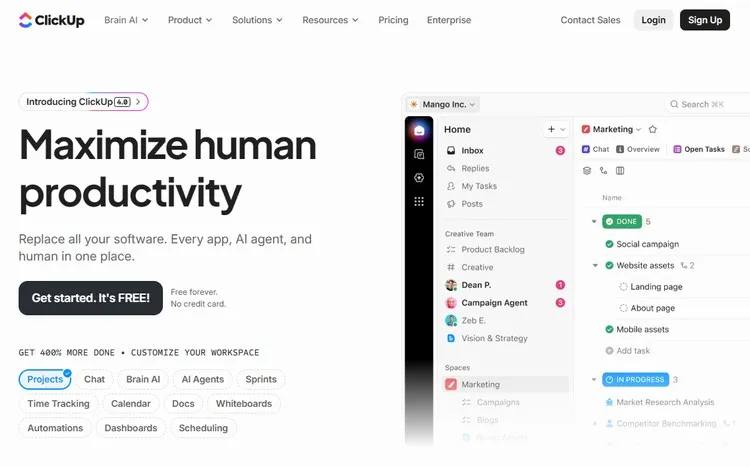
What sets ClickUp apart is its versatility. You can manage everything from simple to-do lists to complex projects all in one platform. The customizable views — like list, board, and calendar — allow me to visualize my tasks in whichever way suits me best. What do you think of these two: ClickUp or Trello in terms of task visualization?. I’m a big fan of how easy it is to create tasks, set due dates, and even assign priorities. The flexibility to collaborate with co-workers in real-time has made a noticeable difference.
One downside (Hmmm, downside?) is that the feature-rich nature of ClickUp can feel overwhelming at first. There’s a lot to explore, which might require a bit of time to fully understand. Plus, as always, advanced features are only available in the paid plans.
Pros and Cons:
| Pros | Cons |
|---|---|
| Highly customizable | Initial learning curve |
| Multiple task views | Some features locked behind paywall |
| Good collaboration tools | Can be overwhelming for new users |
Pricing Plans:
- Free: $0/month for basic features and limited integrations.
- Unlimited: $7/user/month (billed annually), includes unlimited integrations and dashboards.
- Business: $12/user/month (billed annually), offers advanced features like timelines and goals.
- Enterprise: Custom pricing for larger organizations with additional security features and dedicated support.
7. Clockify - Free AI Time Tracking Software
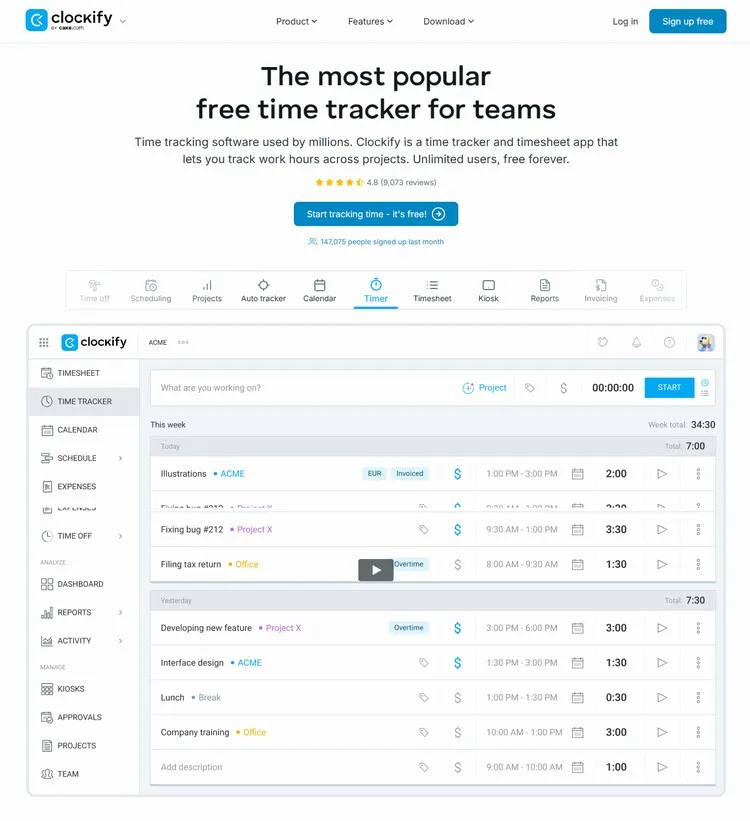
Focused time is crucial for remote workers, you’ll have to priority and set a clear time schedule for each task, and keeping track of time for remote workers is rather challenging. That’s why I decided to try Clockify, and it hasn’t failed me.
Clockify is a free time tracking tool that’s incredibly user-friendly. With just a click, I can start tracking time for different tasks and projects, which has been invaluable for understanding how I spend my day. The dashboard is clean and easy to navigate, allowing me to see time reports at a glance. I particularly appreciate how it breaks down my time by project, so I can identify where I might be spending too much or too little time.
However, while the free version is pretty enough, some advanced features like billable rates and project templates are only available with a paid subscription. This might be something to consider if you’re looking for more complex tracking options.
Pros and Cons:
| Pros | Cons |
|---|---|
| Simple, intuitive interface | Limited features on the free plan |
| Detailed reporting and analytics | Some features only available in paid plans |
| Great for tracking billable hours | May require manual entry for tasks |
Pricing Plans:
- Free: $0/month for unlimited time tracking, calendar, export & share data and reporting.
- Basic: $3.99/seat/month (billed annually), with time audit, customize export, add time for others, decimal format, etc.
- Standard: $5.49/seat/month (billed annually), includes additional features like time off, invoicing, approval, lock time, etc.
- Pro: $7.99/seat/month (billed annually), offering advanced features like scheduling, forecasting, force timer, GPS tracking, etc.
- Enterprise: $11.99/seat/month (billed annually), with single sign-on, custom subdomain, audit log and control accounts.
Overall, Clockify has changed the way I plan my work hours. If you’re struggling with time management while working from home, I highly recommend giving Clockify a shot. It’s straightforward and effective, making it easier to stay on top of your productivity!
Go to Clockify8. Zapier - An Automation Tool that Connects Apps and Automates Workflows
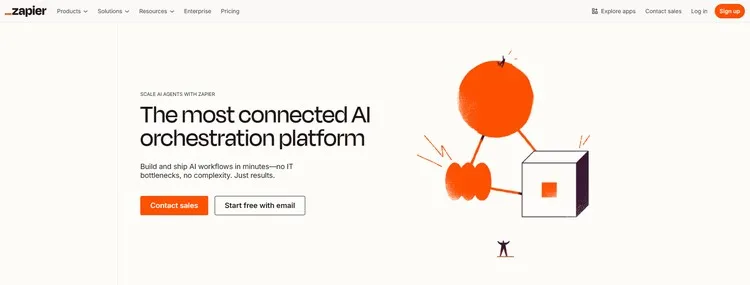
Zapier is notably the best automation tool in the industry for automating daily repetitive tasks. It’s more than just a tool for remote workers and teams, it’s a fundamental workflow automation solution for both small and large enterprises.
Getting started with Zapier is straightforward. You create “Zaps” that link two or more apps that you use daily together to perform specific actions automatically. For example, you can set up a Zap that saves email attachments directly to your Google Drive. The best part is the extensive library of app integrations from various popular platforms. Whether you are using Slack, Gmail, or Trello, there’s likely a way to connect them through Zapier.
However, the learning curve can be a little steep at first, especially if you’re new to automation. Also, while the free plan is decent, more advanced features are locked in paid plans, which might be a setback for smaller teams or freelancers, but I do think it’s worth the money.
Pros and Cons:
| Pros | Cons |
|---|---|
| Extensive app integrations | Steeper learning curve for beginners |
| Saves time by automating tasks | Advanced features require payment |
| User-friendly interface | Free plan has usage limits |
Pricing Plans:
- Free: $0/month for basic automations and limited Zaps.
- Professional: $19.99/month (billed annually), for multi-step Zaps and premium app integrations.
- Team: $69/month (billed annually), offering advanced features like custom logic and premium support.
- Enterprise: Custom pricing, designed for larger teams needing collaboration tools.
Undoubtedly, Zapier has been a amazing addition to my productivity toolkit. If you find yourself bogged down with repetitive tasks and haven’t tried Zapier before, I highly recommend checking it out. It’s a must-have for anyone looking to streamline their workflow!
Go to Zapier9. Otter.ai - Meeting Agent AI Notetaker Transcription Insights
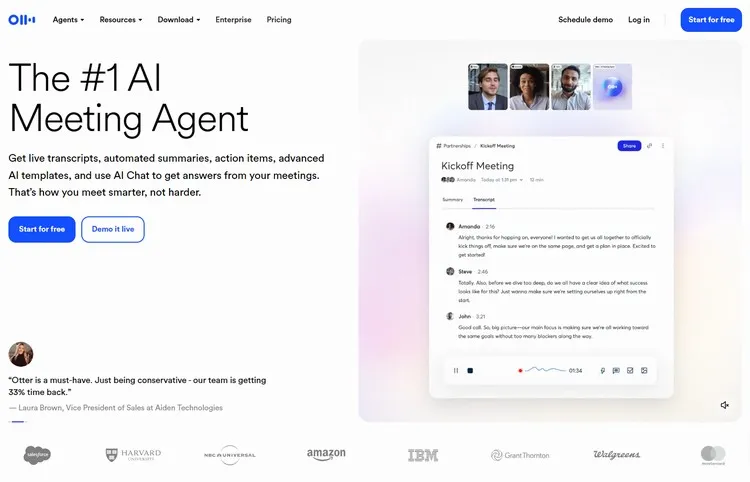
Working remotely means less to none in-person meetings, online meetings are nontheless still required and a must. Taking notes manually while having meetings online can be challenging, and that’s where Otter.ai comes in handy. This app offers real-time voice transcription, making it a extremely convenient to capture notes, automate summaries without the hassle of typing everything out.
Using Otter is incredibly simple. You can record meetings directly through the app, and it automatically transcribes your words instantly, allowing you to only focus on the conversation without having to worry about missing important points. The ability to highlight and annotate notable quotes or sections keeps everything neat and organized for later reference.
One thing to note is that while the free version is a great starting point, it’s somewhat limited, especially in terms of transcription minutes. A paid subscription offers more advanced capabilities like admin control, unlimited custom AI workflow.
Pros and Cons:
| Pros | Cons |
|---|---|
| Accurate real-time transcription | Free version has limited usage |
| Easy to highlight and annotate | Advanced features require payment |
| Intuitive user interface | Can struggle with heavy accents or background noise |
Pricing Plans:
- Free: $0/month for up to 600 minutes of transcription per month with standard features.
- Pro: $8.33/user/month (billed annually), includes 6,000 monthly transcription minutes and additional editing tools.
- Business: $19.99/user/month (billed annually), offering more advanced capabilities, team collaboration features, and admin controls.
- Enterprise: Custom Pricing, custom-tailored for large teams and companies that request unlimited custom AI workflows.
10. Miro - An Online Collaborative Whiteboard Platform

Miro is an online collaborative whiteboard platform that transforms the way we brainstorm and work together.
It allows you to create visual boards in which you can add sticky notes, diagrams, images, and even videos. It’s incredibly versatile! I love how it enables us to map out ideas in real time, which makes our brainstorming sessions feel more engaging. The drag-and-drop functionality is intuitive, and the variety of templates, like mind maps and flowcharts, makes getting started so much easier.
Pros and Cons:
| Pros | Cons |
|---|---|
| Great for visual collaboration | Can feel overwhelming for new users |
| Intuitive interface with drag-and-drop | Limited features in the free plan |
| Extensive templates available | May require time to explore fully |
Pricing Plans:
- Free: $0/month for up to 3 editable boards and basic features.
- Starter: $8/user/month (billed annually), includes unlimited boards, advanced collaboration tools, and integrations.
- Business: $16/user/month (billed annually), offering additional features like timelines and extra templates.
- Enterprise: Custom pricing for larger organizations, featuring advanced security and admin controls.
11. Grammarly - A Powerful AI-based Writing Assistant
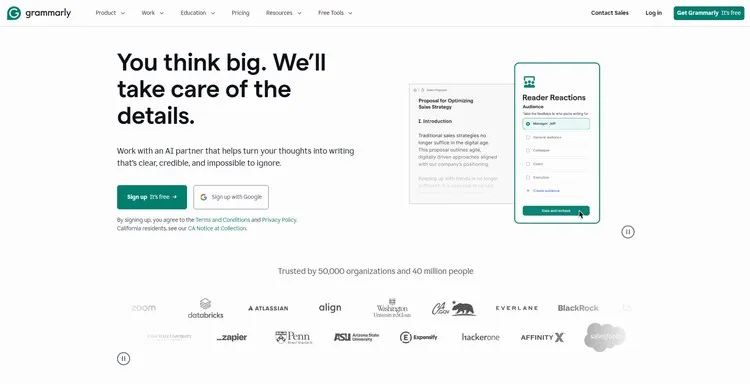
If your remote work includes intensive content writing, be it emails, reports, or social media posts, Grammarly is your best writing companion. This writing assistant not only catches typos, paraphrases but also helps refine my writing style, making it a must-have for anyone working with content creation or proofreading.
Grammarly integrates seamlessly with various platforms like Google Docs, Microsoft Word, and even my email client. As I write, Grammarly highlights grammar mistakes and suggests better phrasing, which helps improve and streamline the writing flow. With Grammarly, we get a clear idea of what our writing tone and style is like and this helps build our own personal brand identify.
While the free version is quite useful (even with 100 AI prompts to generate text), it’s limited in what it can do, especially when it comes to style suggestions, plagiarism detection, and personalized suggestions. If you’re serious about improving your writing, you might want to consider the premium plan.
Pros and Cons:
| Pros | Cons |
|---|---|
| Real-time grammar and spelling checks | Free version has limited features |
| Integrates with various writing platforms | Advanced style suggestions require premium |
| User-friendly interface | Premium pricing can be high for some users |
Pricing Plans:
- Free: $0/month for basic grammar and spelling checks.
- Pro: $12/month (or $144/year if billed annually), includes advanced grammar, style suggestions, and a plagiarism checker.
- Enterprise: Custom Pricing, for larger organizations with dedicated support and unlimited AI text generation prompts.
Grammarly has made a significant impact on my writing. I personally highly recommend giving Grammarly a try. It’s a simple way to elevate your writing and communication!
Go to Grammarly12. Coda - Your All-In-One Collaborative Workspace
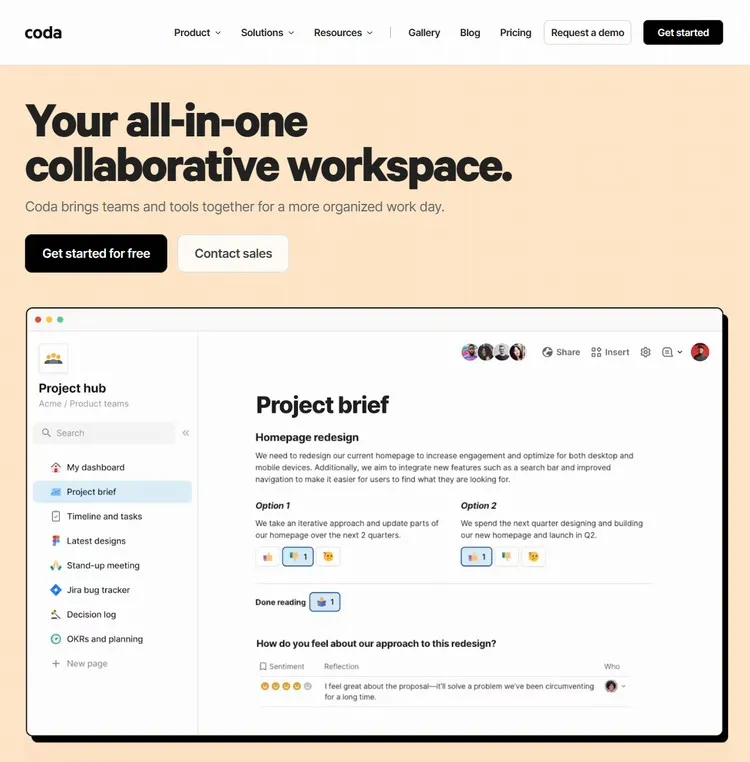
In Coda, you can create everything from simple notes, spreadsheets to complex databases all in one document. The layout options are rich, allowing you to embed tables, images, and even interactive buttons. I like the way it transforms a plain document into an interactive hub for my projects. What’s more, the ability to link different sections together makes it super easy to keep everything cohesive.
That said, there can be a bit of a learning curve, and if you are looking to create unlimited docs and experience other advanced team features and integrations, you will have to upgrade to their paid subscriptions.
Pros and Cons:
| Pros | Cons |
|---|---|
| Highly customizable workspaces | Steeper learning curve for new users |
| Combines documents and databases | Free version has limitations |
| Interactive features enhance collaboration | Might be overwhelming initially |
Pricing Plans:
- Free: $0/month for basic features with limited doc capabilities.
- Pro: $10/month (billed annually), providing unlimited docs and advanced features.
- Team: $30/month (billed annually), ideal for collaboration with team features and integrations.
- Enterprise: Custom pricing for larger organizations needing additional security and support.
Summary
Yes, that’s the whole list of AI-Powered productivity tools for remote work, whether you are a remote worker, small team or large enterprise, these tools can make your work and collaboration a lot easier. From Todoist for keeping track of tasks to Clockify for better managing time, each tool has something special to offer. Almost all of these tools offer a generous free plan to get you started, and you might even be able to mix some of these tools to better suit your work needs.
Why not try out a few of these options and see how they can help you stay organized and productive. With the right tools, working from home can be a lot smoother and even enjoyable. Happy working!