
The design industry has undergone a remarkable transformation over the past decade, driven by advancements in software capabilities, collaboration features, and artificial intelligence. Whether you’re a seasoned professional or a budding creative, having the right design tools can significantly impact your workflow, creativity, and output quality. In 2025, the landscape of design software is more diverse and powerful than ever, offering solutions for every niche—from vector illustration and UI/UX design to 3D modeling and digital publishing.
In this article, we explore the best design software tools you need to know as a designer, they are categorized by their primary functions and industries. Each tool is evaluated based on its features, strengths, weaknesses, pricing, and target audience.
By the end of this article, you’ll have a clear idea to select the perfect tools for your creative efforts.
1. Adobe Creative Cloud: The Industry Standard
Overview
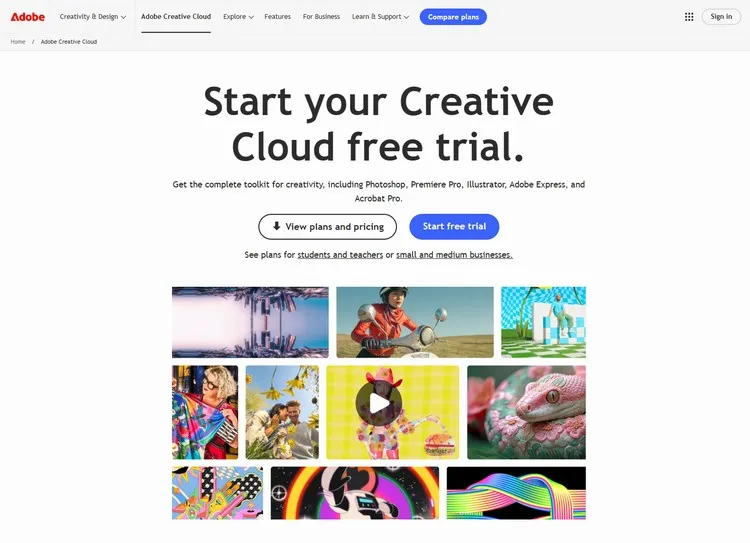
Undoubtedly, Adobe Creative Cloud remains the leader in design software, offering an all-in-one suite for everything from photo editing to video production. Its integration across applications like Photoshop, Illustrator, and InDesign makes it a go-to for professionals.
Key Features
- Cross-Platform Syncing: It provides seamless switch between desktop and cloud workflow, making syncing a breeze.
- AI-Powered Tools: Adobe Creative Cloud offers features like Neural Filters in Photoshop, which automates complex photo edits.
- Collaboration: The cloud libraries and shared assets streamline your team projects.
Pros
- The versatility for print, web, and motion design is unmatched compared to other design software tools.
- Adobe Creative Cloud is regularly updating their tools with new features and compatibility improvements.
- Whether you’ve tried some of them or not, there are an extensive selection of third-party plugins that can be installed and integrated into Adobe Creative Cloud eco-system.
Cons
- Subscription-based pricing can be costly for freelancers or small studios.
- Steep learning curve for beginners.
Pricing
- For Individuals
- Creative Cloud Pro - A bundle of 20+ apps: US$69.99/mo.
- Individual apps like Photoshop begin at US$22.99/mo.
- For Business
- Creative Cloud Pro - A bundle of 20+ apps: US$99.99/mo/license
- Individual apps like Acrobat Pro starts at US$23.99/mo/license
- For Students & Teachers
- Creative Cloud Pro - A bundle of 20+ apps: 64% OFF at US$24.99/mo for first year and then US$39.99/mo after that.
- For Schools & Universities
- Creative Cloud Pro - A bundle of 20+ apps: US$34.99/mo/user.
- Custom pricing for departments of 100 students or more
2. Figma: The Collaborative UI/UX Powerhouse
Overview
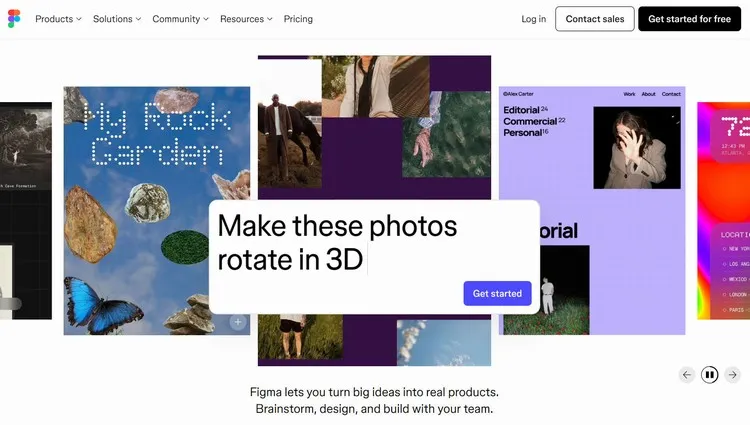
Figma is currently dominating the UI/UX design space with its cloud-based, real-time collaboration features. It’s ideal for teams designing interfaces, prototypes, and design systems.
Key Features
- Real-Time Collaboration: Multiple users can edit designs simultaneously with live commenting. It’s a great feature for teamwork.
- Prototyping Tools: You can easily and efficiently create interactive mockups with animations and transitions.
- Design Systems: Figma offers the ability to maintain consistency with reusable components and styles.
Pros
- Platform-agnostic (works on Windows, macOS, and Linux via browsers).
- Free tier available for individual users.
- Integrates with developer handoff tools like Zeplin.
- Figma AI empowers designers with new inspirations and push designers work to the next level.
Cons
- Requires a stable internet connection for full functionality.
- Limited offline capabilities.
- Figma AI is only available for paid plans.
Pricing
Figma offer a free starter plan. Professional plan starts at US$5/mo billed monthly or US$3/mo billed annually.
* Figma is free for verified students and educators.
Go to Figma3. Sketch: Precision for Digital Interface Design
Overview
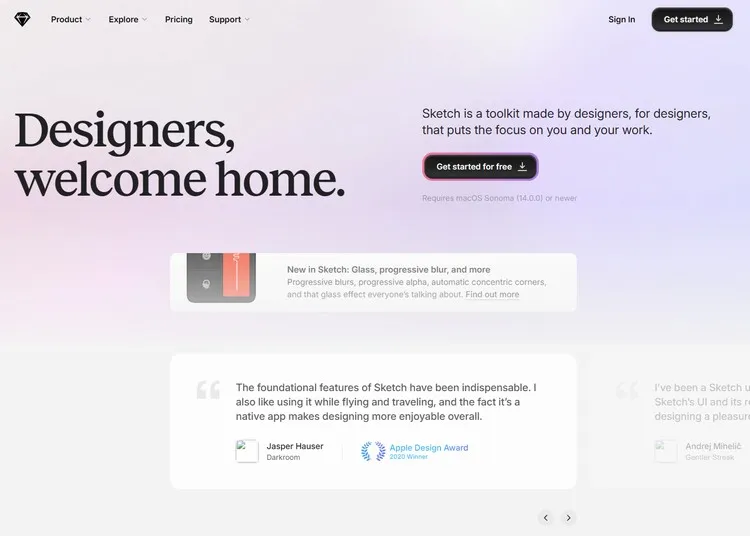
Sketch is a vector-based tool tailored for UI/UX designers, it is known for its simplicity and it focuses on interface design. It’s a macOS-exclusive application favored for its symbol libraries and responsive design tools.
Key Features
- Vector Editing: Scalable designs with pixel-perfect precision.
- Symbols & Styles: Reusable elements ensure design consistency.
- Plugin Ecosystem: Extend functionality with community-driven plugins.
Pros
- Intuitive interface optimized for macOS users.
- Strong focus on digital design workflows (e.g., artboards for multiple screen sizes).
Cons
- No native Windows support.
- Collaboration features are less robust than Figma’s.
Pricing
- 30-day free trial with no credit card required.
- Standard subscription starts at US$10/mo/Editor, billed yearly.
4. Canva: Simplicity for Non-Designers and Marketers
Overview
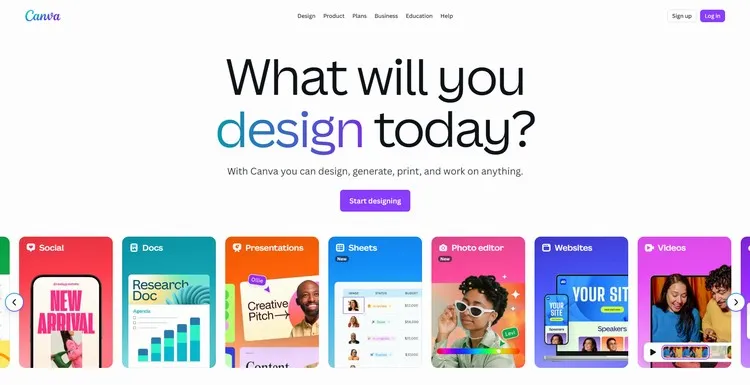
Canva democratizes design with a user-friendly, drag-and-drop interface. It’s perfect for creating social media graphics, presentations, and marketing materials without prior design experience.
Key Features
- Template Library: Thousands of pre-designed templates for various use cases.
- AI Integration: Tools like Magic Resize adapt designs for different platforms.
- Brand Kits: Maintain logo, font, and color consistency across projects.
Pros
- Low learning curve; ideal for beginners.
- Free plan includes essential features.
- Cloud-based for access from any device.
Cons
- Limited customization compared to professional tools.
- Export quality may not meet print standards.
Pricing
- Free Plan with essential features and limited Premium AI access.
- Canva Teams Plan starts at US$100/year/person.
- Canva Pro Plan starts at US$120/year/person.
- K-12 educational organizations and non-profit organizations can enjoy premium features for free.
5. Affinity Designer: The Affordable Adobe Alternative
Overview
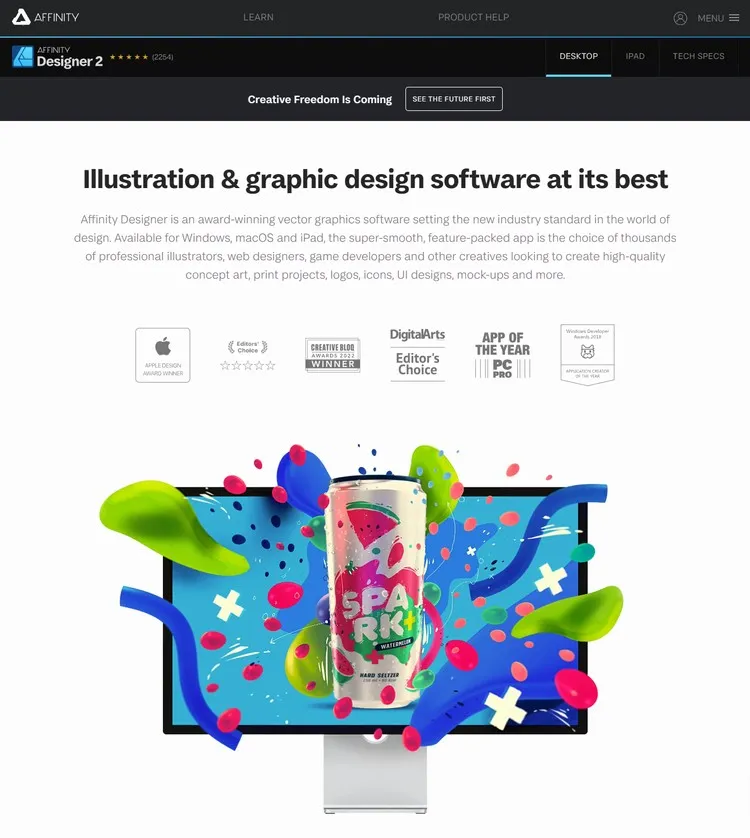
Affinity Designer is a vector graphic editor that rivals Adobe Illustrator but with a one-time purchase model. It’s praised for its speed, precision, and ability to handle both vector and raster elements.
Key Features
- Dual Environment: Switch between vector and pixel workspaces seamlessly.
- Non-Destructive Editing: Apply effects without altering original assets.
- Performance: Optimized for handling large files and complex illustrations.
Pros
- Cost-effective (no subscription required).
- Supports Adobe file formats (e.g.: PDF, AI, PSD).
- Suitable for print, web, and illustration projects.
Cons
- Smaller user community than Adobe’s ecosystem.
- Fewer advanced plugins.
- No free trial available.
Pricing
- Basic Plan: US$4999, flat rate, one time.
- Plan 2: US$1949, flat rate, one time.
6. CorelDRAW Graphics Suite: Vector Power for Professionals
Overview
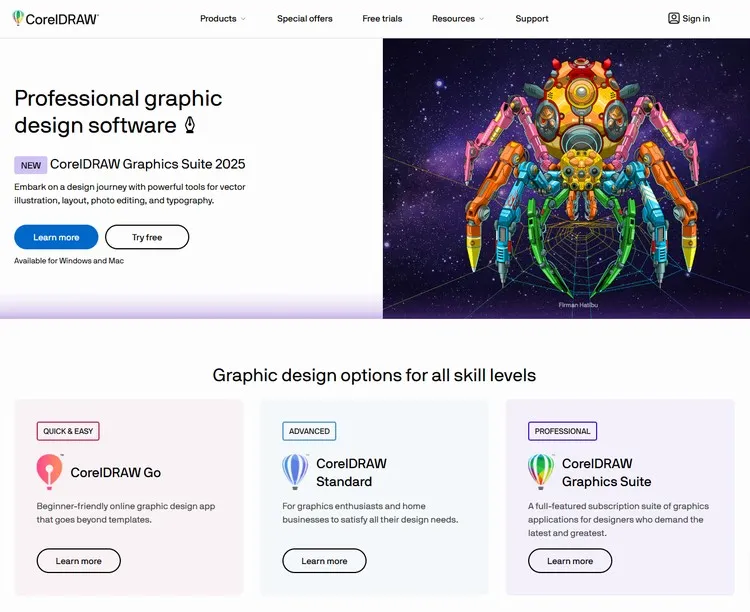
CorelDRAW is a veteran in vector design, offering robust tools for illustration, layout, and typography. It’s widely used in industries like fashion, engineering, and print media.
Key Features
- AI-Enhanced Tools: Features like AI-powered image upscaling and stylization.
- Multi-Page Support: Ideal for brochures, magazines, and multi-artboard projects.
- Compatibility: Supports over 100 file formats, including Adobe AI and PDF.
Pros
- Comprehensive toolset for vector-based and page-layout work.
- Perpetual license option available.
Cons
- Interface can feel outdated compared to newer tools.
- Steeper learning curve for advanced features.
Pricing
- Free trial for 15 days with no credit card required.
- CorelDRAW Graphics Suite: About US$269/year on a subscription basis.
- CorelDRAW Graphics Suite: Approximately US$549 for a one-time purchase.
- CorelDRAW Go: It’s a web-based app starting at about US$99.99/year.
- CorelDRAW Standard: About US$299 for a one-time purchase for hobbyists and home businesses.
7. Blender: The Free 3D Creation Suite
Overview
Blender is an open-source powerhouse for 3D modeling, animation, and rendering. It’s used by indie developers, studios, and educators for its full-featured toolkit.
Key Features
- Modeling & Sculpting: Advanced tools for organic and hard-surface models.
- Cycles Renderer: GPU-accelerated rendering for photorealistic outputs.
- VFX & Simulation: Supports fluid dynamics, particle systems, and VR.
Pros
- Completely free and community-driven.
- Regular updates with cutting-edge features (e.g., real-time ray tracing).
- Cross-platform support.
Cons
- Steep learning curve for beginners.
- Less integrated with industry pipelines than Autodesk Maya.
Pricing
- Free and open source.
8. Adobe Photoshop: The Image Editing Giant
Overview
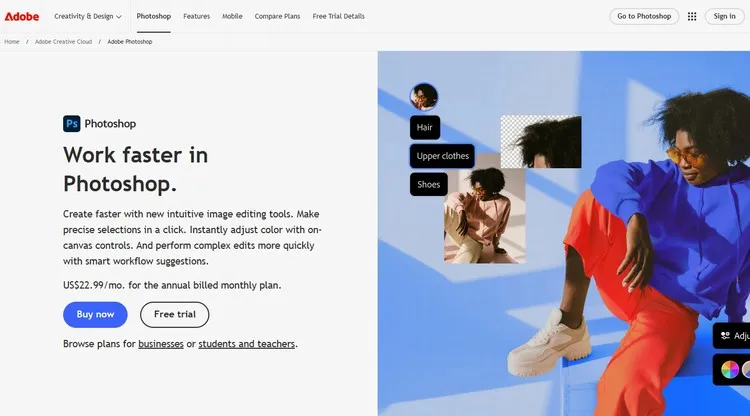
Even though Adobe Photoshop is included in Adobe Creative Cloud we mentioned in #1 of this article, it is so powerful that it’s worth picked out for special attention.
Photoshop sets the standard for raster image editing, used by photographers, designers, and digital artists for everything from photo retouching to complex composites.
Key Features
- AI Tools: Neural Filters for skin smoothing, colorization, and more.
- Layer Management: Advanced masking, blending modes, and smart objects.
- 3D Design: Basic capabilities for creating and texturing 3D models.
Pros
- Unparalleled depth for photo manipulation and digital painting.
- Integrates with other Adobe apps and third-party plugins.
Cons
- Subscription-based pricing can be expensive.
- Overkill for simple edits or vector-based tasks.
Pricing
- Starts at $22.99/month as a standalone app.
9. Procreate: Digital Art Revolutionized on iPad
Overview
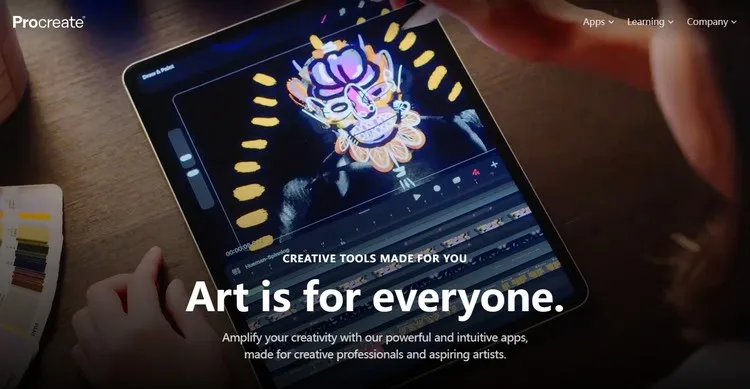
Procreate is an iPad-exclusive app that combines a intuitive interface with powerful drawing tools, making it a favorite among illustrators and concept artists.
Key Features
- Brush Engine: Hundreds of customizable brushes with Apple Pencil support.
- Animation Assist: Create frame-by-frame animations directly on iPad.
- High-Resolution Canvases: Supports up to 16k resolution for print-quality art.
Pros
- Affordable one-time purchase.
- Optimized for touch and portability.
Cons
- Limited to iPadOS.
- No vector support.
Pricing
- US$12.99 one-time purchase
10. GIMP: The Free Photoshop Alternative
Overview
GIMP (GNU Image Manipulation Program) is a open-source raster editor that provides many of Photoshop’s capabilities without the cost. It’s ideal for budget-conscious users.
Key Features
- Customizable Interface: Modular tools and plugins for tailored workflows.
- Photo Enhancement: Tools for color correction, cloning, and filters.
- Scripting Support: Automate tasks with Python or Scheme.
Pros
- Completely free and community-supported.
- Cross-platform (Windows, macOS, Linux).
Cons
- Interface feels less polished than commercial tools.
- Steep learning curve for advanced features.
Pricing
- Free and open source.
11. Inkscape: Vector Design for Everyone
Overview
Inkscape is a free, open-source vector editor comparable to Adobe Illustrator. It’s popular for logo design, illustrations, and scalable graphics.
Key Features
- SVG Support: Native scalability without quality loss.
- Drawing Tools: Bezier curves, shapes, and path operations.
- Extensions: Customizable with Python scripts and add-ons.
Pros
- No cost barrier; ideal for students and hobbyists.
- Active community and extensive documentation.
Cons
- Less optimized for complex projects than Illustrator.
- Interface can be unintuitive.
Pricing
- Free and open source.
12. AutoCAD: Precision for Architects and Engineers
Overview
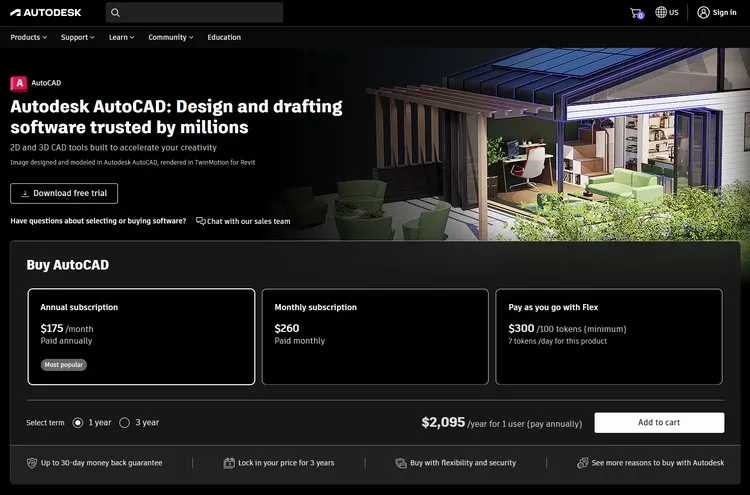
AutoCAD is the industry standard for computer-aided design (CAD), used in architecture, engineering, and construction for 2D drafting and 3D modeling.
Key Features
- Parametric Design: Constraints and relationships for accurate models.
- Collaboration Tools: Cloud-based markup and version control.
- Specialized Toolsets: For mechanical, electrical, and plumbing design.
Pros
- Unmatched precision for technical drawings.
- Mobile app for on-site edits.
Cons
- High cost for full licenses.
- Steep learning curve.
Pricing
- 15-days free trial.
- Pay as you go with Flex: US$300/100 tokens (minimum), 7 tokens/day for this product.
- Monthly subscription: US$260/month for 1 user.
- Annually subscription: US$2095/year for 1 user.
13. Photopea: free online photo editor alternative to Adobe Photoshop
Overview
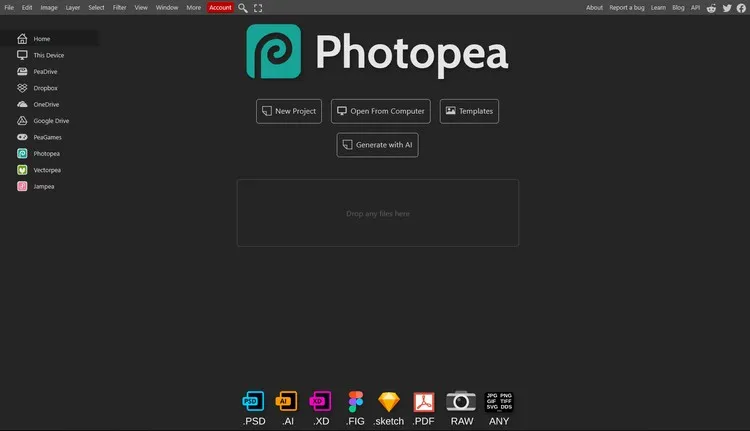
Photopea was developed by programmer Ivan Kutskir in 2013, it operates entirely within a web browser, requiring no installation. Photopea is designed for photographers, graphic designers, and digital artists who need professional-grade editing tools without the cost or complexity of traditional software. Its interface closely mimics Photoshop, making it easy for users to transition while offering support for a wide range of file formats, including PSD, AI, Sketch, RAW, and SVG.
Key Features
- PSD and Multi-Format Support: Photopea fully supports Photoshop’s native PSD files, allowing users to open, edit, and save layers, masks, and smart objects without losing data. It also handles over 40 other formats, such as PDF, XCF, JPEG, PNG, and vector files like AI and SVG, making it a versatile “Swiss Army knife” for graphics workflows.
- Layer-Based Editing: The tool includes advanced layer management, blending modes, adjustment layers, and layer styles, enabling non-destructive edits comparable to Photoshop.
- AI-Powered Tools: Features like one-click background removal, content-aware fill, and generative AI (via premium subscription) streamline complex tasks.
- Vector and Raster Tools: Users can create and edit vector graphics (e.g., logos, icons) alongside raster images, with pen tools, shapes, and path operations.
- RAW Photo Processing: Photopea supports RAW files from cameras (e.g., CR2, NEF), though it lacks advanced corrections like lens profiles or noise reduction found in dedicated RAW processors.
- Cross-Platform Accessibility: Runs on any device with a modern browser (Windows, macOS, Linux, mobile) and works offline after initial loading.
Pros
- Cost-Effective: Free with ads; premium plans start at $5/month for ad-free use and AI features—significantly cheaper than Photoshop’s subscription.
- No Installation Required: Instant access via browser, ideal for quick edits or low-configuration devices.
- Familiar Photoshop Interface: Reduces learning curves for existing Photoshop users.
- Privacy and Security: Files are processed locally on your device, not uploaded to cloud servers.
Cons
- Performance Limitations: Can be slow with large files or complex layer stacks, especially on older hardware.
- Ads in Free Version: Displays sidebar ads, which may distract during focused work.
- Limited Advanced Features: Lacks Photoshop’s plugin ecosystem, 3D tools, and some AI-driven enhancements (e.g., neural filters).
- No Native Mobile App: While browser-based, mobile usability is less optimized than dedicated apps.
Pricing
- Free Plan: Full feature access with advertisements .
- Premium Plan: $5-$9/month (or $40-$50/year) for ad-free experience, priority processing, and generative AI credits .
- Team/Enterprise Plans: Custom pricing for embedded solutions or self-hosting .
14. SketchUp: 3D Modeling Made Accessible
Overview
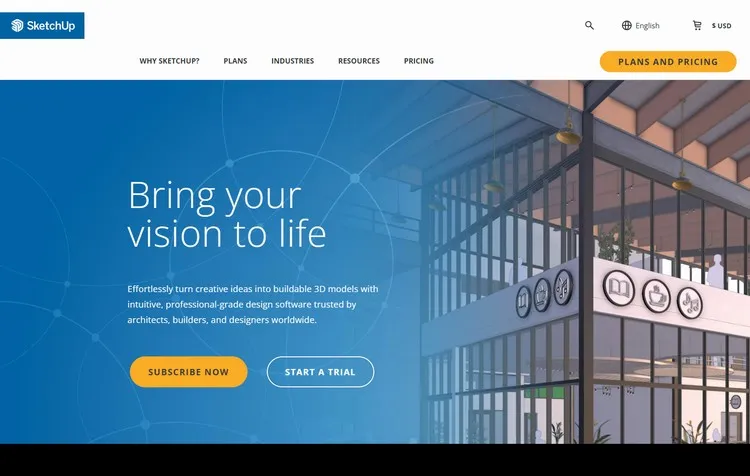
SketchUp is a user-friendly 3D modeling tool popular among architects, interior designers, and film-makers for its intuitive push-pull mechanics.
Key Features
- Library of Models: 3D Warehouse offers pre-made components.
- VR Integration: View models in virtual reality for immersive presentations.
- Layout Tools: Generate 2D documentation from 3D models.
Pros
- Easy to learn for beginners.
- Free web-based version available.
Cons
- Limited advanced rendering capabilities.
- Premium features require a subscription.
Pricing
- 7-days free trial with no credit card required.
- Go Plan: US$19.99/month/user.
- Pro Plan: US$99.99/month/user.
15. Affinity Photo: Professional Photo Editing
Overview
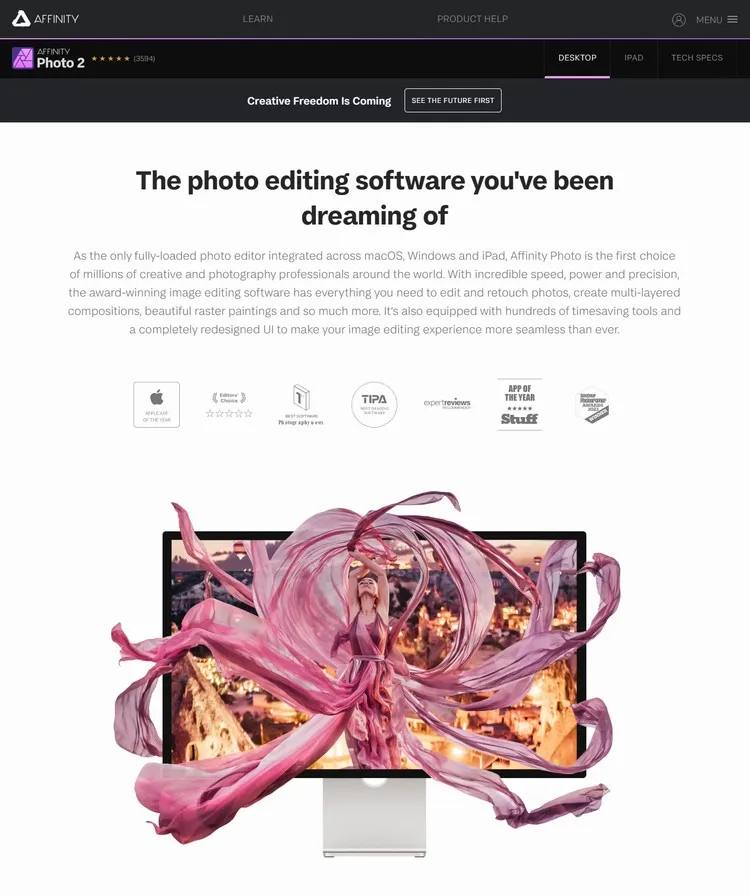
Affinity Photo is a raster editor that competes with Photoshop, offering advanced features like non-destructive layers and RAW processing at a one-time cost.
Key Features
- Live Filters: Real-time previews of adjustments.
- HDR Merge: Combine exposures for high-dynamic-range images.
- Compatibility: Supports PSD files and professional color spaces.
Pros
- No subscription; affordable pricing.
- Optimized for speed and performance.
Cons
- Smaller plugin ecosystem than Photoshop.
Pricing
- Free trial available.
- US$34.99 one-time purchase for desktop app.
16. InVision: Prototyping and Collaboration
Overview
InVision is a digital product design platform focused on prototyping, animation, and team collaboration.
Key Features
- Interactive Prototypes: Turn static designs into clickable mockups.
- Design System Manager: Maintain consistency across projects.
- User Testing: Collect feedback from stakeholders and users.
Pros
- Integrates with Sketch and Figma.
- Streamlines feedback loops.
Cons
- Limited vector editing capabilities.
- Pricing can be high for small teams.
Pricing
- InVision officially shut down its service on December 31, 2024.
17. Krita: Digital Painting for Artists
Overview
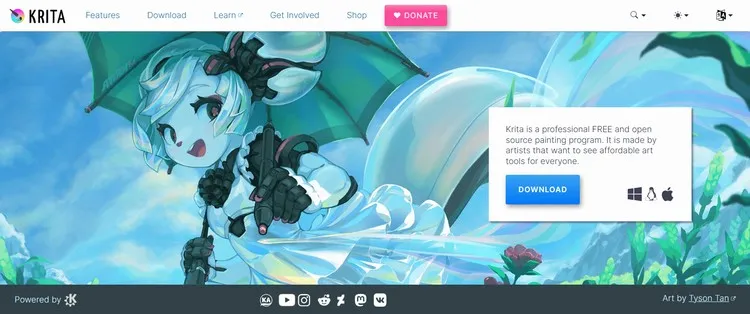
Krita is a free, open-source painting program designed for illustrators, concept artists, and animators.
Key Features
- Brush Engines: Over 100 brushes with customizable textures.
- Animation Tools: Timeline-based frame editing.
- HDR Support: Work in high dynamic range color spaces.
Pros
- Completely free and community-driven.
- Regular updates with new features.
Cons
- Not optimized for vector or UI design.
Pricing
- Free and open-source.
18. Vectr: Simple Vector Editing for Beginners
Overview
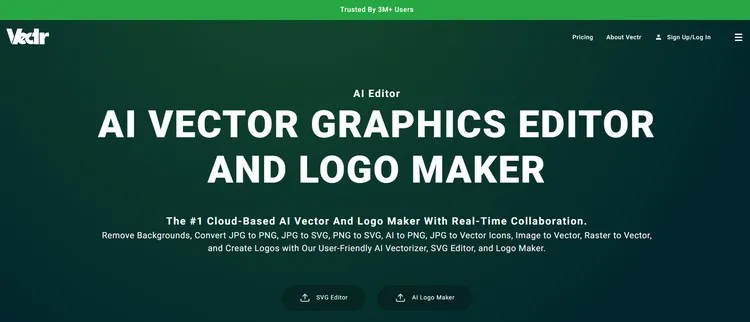
Vectr is an online vector editing tool. You can also create logos, icons, presentations, remove backgrounds, use AI photo generator, and convert JPG to SVG. Vectr stands out due to its simplicity and powerful features.
Key Features
- Real-Time Collaboration: Share designs for feedback.
- Minimalist Interface: Easy to learn for non-designers.
- Cross-Platform: Works on desktop and web browsers.
Pros
- More than just a design software, but rather a comprehensive toolset.
- Low learning curve.
Cons
- Limited features for complex projects.
Pricing
Completely free, Vectr previously offered a free version, but they have transitioned to a paid-only tool.- Plus Plan: US$3.99/month on an annually billing circle (US$0.99 now!).
- Premium Plan: US$9.98/month on an annually billing circle (US$4.99 now!).
Bonus Design Tools
- Pixso: A collaborative UI/UX tool with robust vector capabilities and observer modes for team feedback. Ideal for remote designers.
- Lunacy: A cross-platform native graphic editor app that’s perfect for UI designers on a budget, it’s also a great alternative to Figma, Sketch and Pixso with free plan available.
- MediBang Paint: A lightweight digital painting app with cloud storage and comic-making tools. Great for manga artists. Using MediBang Paint’s scan and import function, you can combine the strengths of traditional and digital art. With this function, it’s easy to scan sketches to paint over, or inked art to add colors to, whatever best suits your style. Let MediBang Paint be what takes your traditional art to the next level.
- AutoDraw: An AI-powered drawing tool that turns sketches into polished graphics. Ideal for quick ideation. AutoDraw was built by Dan Motzenbecker and Kyle Phillips with friends at Google Creative Lab.
Conclusion
The right design software can elevate your creativity, streamline collaboration, and adapt to your unique workflow. From industry giants like Adobe Creative Cloud to niche tools like Pixso, the key is to match the tool to your project’s requirements, team size, and budget. As AI and real-time collaboration evolve, expect tools like Figma and Canva to become even more integrated into creative processes. Explore free trials, leverage community resources, and don’t hesitate to mix and match tools for optimal results. Whether you’re a solo freelancer or part of a global team, the perfect design software is out there waiting to bring your ideas to life.